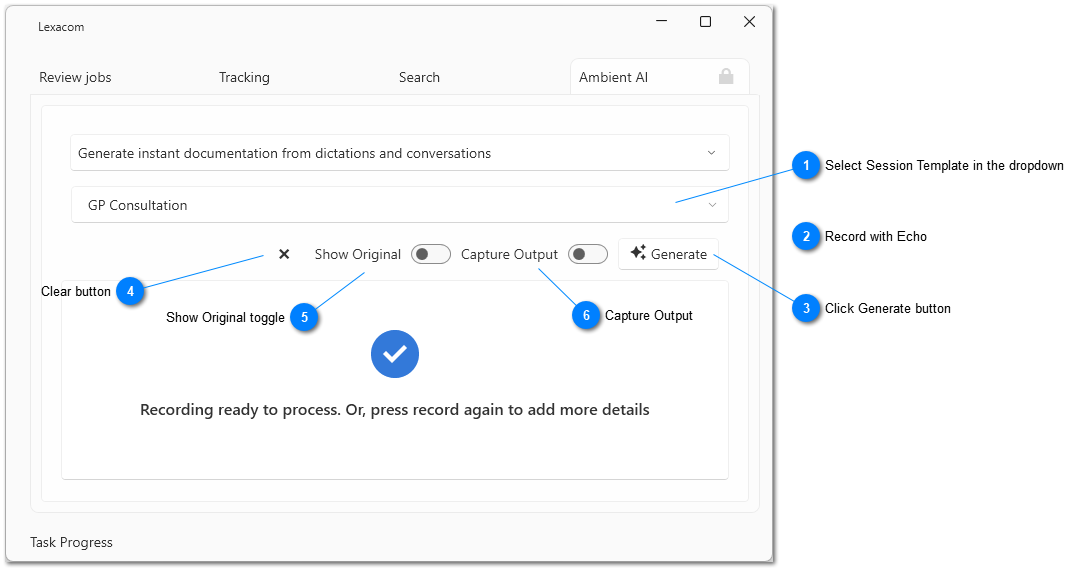
Ambient AI allows users to record live sessions, and process the transcription using Comprehension Engine®.
Select Session Template in the dropdown
Users can select the type of documentation or session that has been recorded in the Session Template dropdown. The templates available will depend on the user's team.
Templates may have certain properties, including being configured for conversation between multiple speakers, or enforcing Output Capture. These properties will only apply whilst the template is selected.
Users should record their session with Echo as they normally do. Whilst on the Live tab, the Echo control will display the AI symbol.
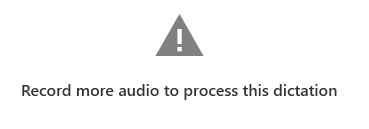
Live requires a minimum amount of recording before Comprehension Engine® can process a session (approximately 50 words). If there is insufficient transcription, Live will display a message to advise the user to record more transcription:
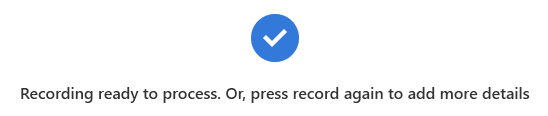
If there is sufficient transcription, Live will display a message to advise that the recording is now ready to process:
Users may add to recordings both before and after processing.
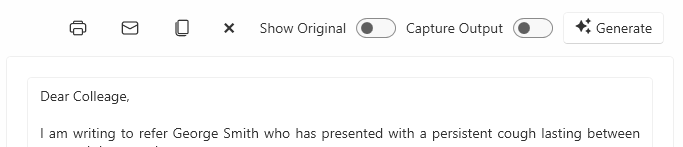
The Generate button processes the transcription with Comprehension Engine®. The processed transcription is returned below. Users can edit the transcription here.
Changes to the processed transcription will not be retained if the user process the transcription again (with either the same template or a different template).
Users can the function buttons to copy, email, or print the transcription .
Copy
Copies the contents of the transcription to the clipboard.
Email
Opens a new email in your default email client, with the transcription as the email body text.
Print
Opens a new Print window to print the transcription.
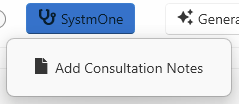
Users with clinical system integration using a template that is configured to return consultation notes will see an additional button to submit consultation notes to the clinical system. To submit notes, the user should click this button, then select Add Consultation Notes.
The user should review the notes window that will appear to confirm all information is present and has been categorised in the appropriate section correctly. If necessary, the user can cancel this window to return to the transcription and edit this further. If happy with the sections, the user should click Submit to send this to the clinical system.
The Clear button allows the user to clear the current session. This will clear both the original and processed transcriptions. This action cannot be undone.
The Show Original toggle shows the original, unformatted transcription. The user may copy or edit this (e.g. to correct the spelling on a name). Changes to the original transcription will be retained and used when processing the transcription.
The Capture Output toggle allows the user to enable capture of their sound output whilst recording with Ambient AI. This may be required to capture e.g. both sides of a telephone or video call, or to process a recording of a session being played on the device.
Some templates are set to always capture sound output. Whilst these templates are active, Capture Output will always be enabled.